Viewing closed captions in IFST webinars
You can view closed captions as a participant in IFST webinars within zoom. We have provided the guidance below for joining on desktop or via the mobile app. Disclaimer: these are automatically generated so may contain errors.

Zoom on Desktop
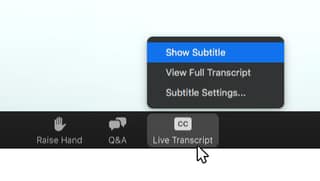
1) Join the webinar on zoom. 2) When closed captions begin, you will see a CC live transcript button in the meeting controls. 3) Click Show Subtitle to start viewing closed captioning. Tip: Click and drag the closed captioning to move its position in the meeting window.
Adjusting Caption Size on Desktop
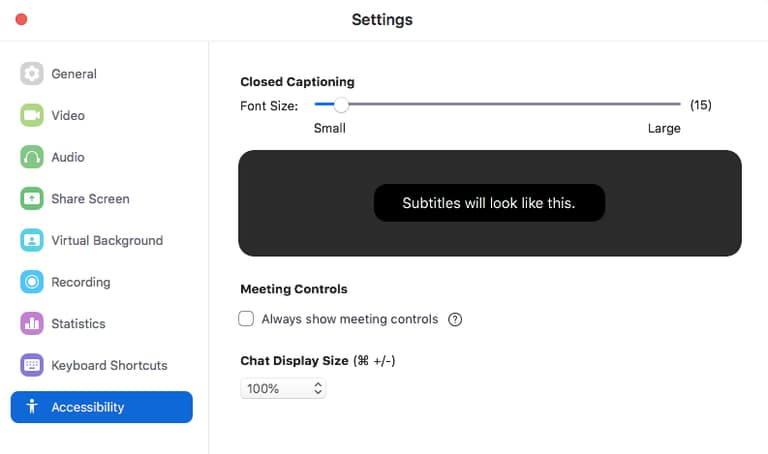
1) Click the upward arrow next to Start Video / Stop Video. 2) Click Video Settings then Accessibility. 3) Move the slider to adjust the caption size.
Zoom Subtitles
Zoom Mobile app
1. Before joining the webinar open the zoom app. 2. Tap the Settings icon. 3. Tap Meeting. 4. Toggle Closed Captioning to on. When you are in a webinar where closed captioning is available, they will automatically appear on the bottom of the screen.
Viewing closed captions/subtitles on IFST videos
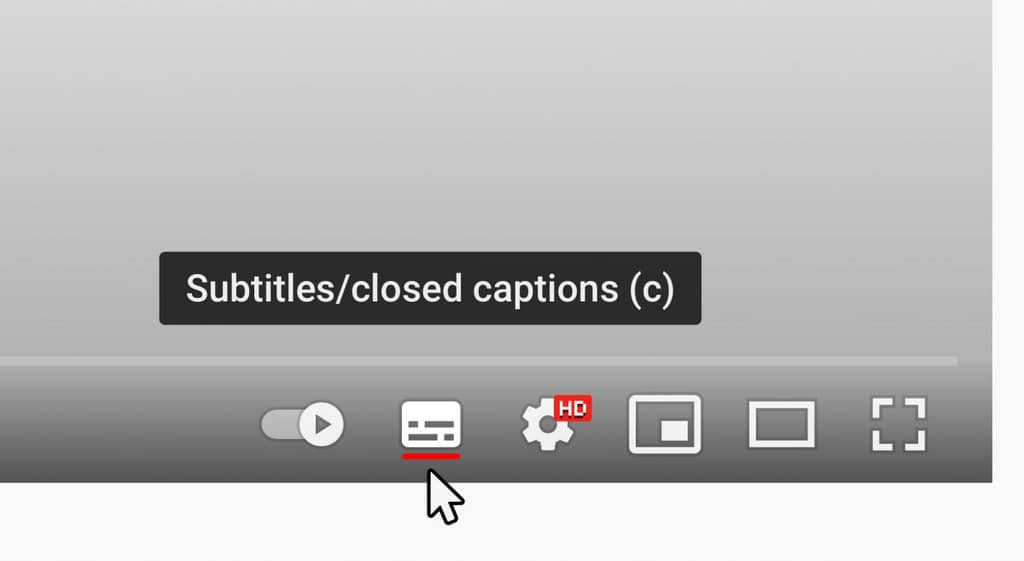
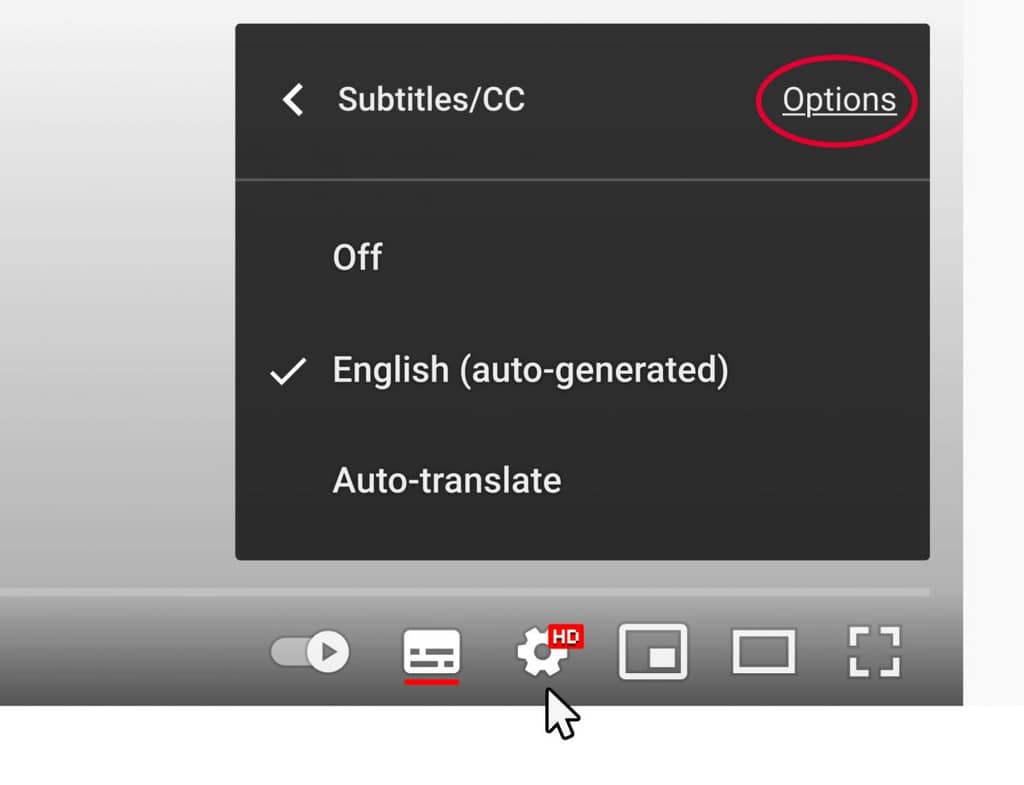
You can view closed captions/subtitles on all IFST videos. Disclaimer: at IFST for videos up to 5 minutes we check the subtitles are 100% accurate. In longer videos such as our webinars, these are automatically generated so may contain errors. 1) Click the subtitles/closed captions (c) button at the bottom right of the video window to start viewing closed captioning. 2) (Optional) To adjust caption size click on settings then subtitles/CC followed by options to adjust.
Youtube Subtitles